Why Is the Galaxy Watch Always-On Display So Dim? The 15% Rule, the Second Hand and Burn-In
TL;DR
- Under Google's Wear OS quality rule, an always-on watch face may average at most 15% of a fully white screen.
- Our 7 watch faces measured 8.5% to 55.1% on the normal screen and 1.6% to 5.1% in always-on mode.
- Google says an app on the always-on display usually updates about once a minute, and our Ridgeline face hides everything that changes by the second there.
- Samsung's guide has no separate always-on brightness setting; the watch face decides what the always-on display shows and how bright it is drawn.
A dim always-on display on a Galaxy Watch is not a fault. Under Google's rule for Wear OS, an always-on watch face may average at most 15% of a fully white screen. I make watch faces for Wear OS watches, so I measured our 7 released faces against that rule.
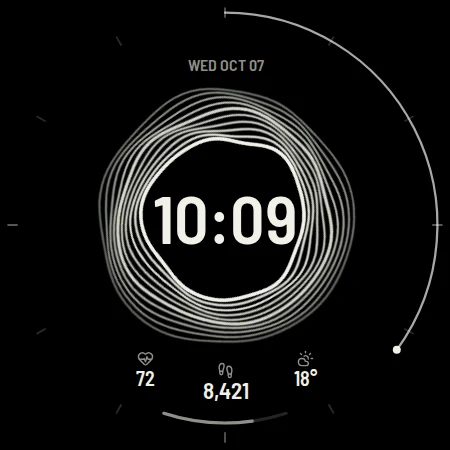
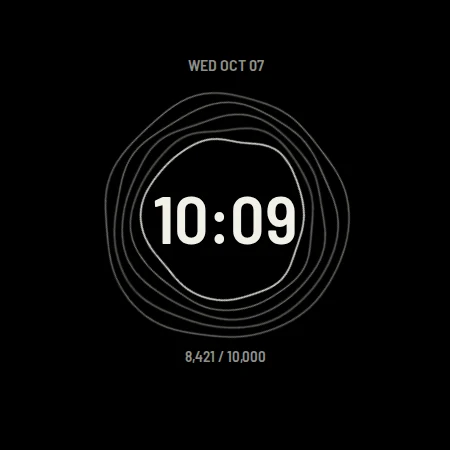
Why the always-on display is dim: the 15% rule
Since the Galaxy Watch4, Samsung's watches run Wear OS, which Samsung built with Google. Google sets app quality rules for Wear OS watch faces. Under one of those rules (WO-P7), the average brightness of an always-on watch face must stay at or below 15%. A fully white pixel counts as 100% and a black pixel as 0%, averaged over the whole face, so this is not the brightness setting of the watch.
Google's quality page says the calculation is repeated about every 10 minutes across a whole day, and every result must stay at or below 15%. Google's design guide gives the reason: to conserve battery life. The 15% is a ceiling, so a face may be much darker.
What our 7 faces measure
I applied Google's calculation to the 7 Pro watch faces I have on Google Play. A computer drew each face's install file on the normal screen and on the always-on display, and I averaged the brightness inside the round face.
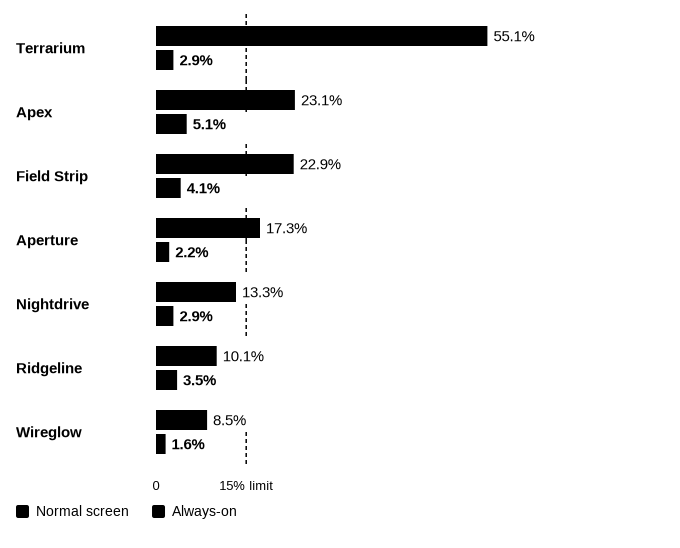
The normal screens range from 8.5% to 55.1%, but all 7 always-on displays stay between 1.6% and 5.1%. Even Terrarium, the brightest normal screen, drops to 2.9% in always-on mode. Each number is one frame at one time, so a real watch or another time of day can give a slightly different value.
Why the second hand disappears
The always-on display is a low-power state: the screen dims and changes rarely. Google says an app's always-on screen usually updates about once a minute. So a second hand that moves every second does not fit the always-on display.
Our Ridgeline face hides everything that changes by the second on the always-on display. In the picture above, the seconds arc on the right of the normal screen is gone.
Why the always-on display moves a little: burn-in protection
Burn-in is a mark that stays on a screen after it shows the same image for a long time. Samsung says a Galaxy Watch image that moves slightly is an intended way to prevent burn-in. Google's documentation also says the system shifts the screen content from time to time on watches that need burn-in protection.
Can you make the always-on display brighter?
Samsung's display settings guide has no separate brightness setting for the always-on display. There is one Brightness setting for the screen, and Samsung suggests lowering it to prevent burn-in if you keep the screen on all the time.
The watch face decides what the always-on display shows and how much of the screen it lights; the Brightness setting sets the screen as a whole. Among the 7 faces above, always-on brightness ranges from 1.6% to 5.1%, more than three times apart. If you want an always-on display that is easier to read, pick a face with a brighter always-on design.
How to set up the always-on display
- On the watch, open Settings and tap Display.
- Turn Always On Display on or off. Samsung says keeping the screen on at all times uses more battery.
- Set the screen brightness under Brightness in the same menu.
- When you pick a watch face, look at its always-on design too. Each of our Tickmark faces shows its always-on design on the site before you install it.
FAQ
How much more battery does the always-on display use?
Samsung's settings guide gives no number. For the Galaxy Watch8, Samsung lists up to 30 hours of use in Always On Display mode, with no figure for AOD turned off, so the difference is not known. For the Pixel Watch 3, Google lists up to 24 hours with Always-on Display turned on and up to 36 hours in Battery Saver mode, which turns off the always-on display and background activity.
Sources
- Android Developers, Wear OS app quality (WO-P7)
- Android Developers, Watch faces (design guide)
- Android Developers, Ambient mode (Watch Face Format)
- Android Developers, Always-on apps and system ambient mode
- Samsung US, Customize the display settings on your Samsung smart watch
- Samsung US, Prevent screen burn on your Samsung smart watch
- Samsung Singapore, What to do when displayed image shifts on Galaxy Watch? (July 25, 2022)
- Samsung US, Galaxy Watch8 (product page FAQ)
- Google Pixel Watch Help, Charge Google Pixel Watch and tips to improve battery life
- Samsung Newsroom, Galaxy Watch4 and Galaxy Watch4 Classic: Reshaping the Smartwatch Experience (August 11, 2021)